Comments
Comments
Select anything and leave a comment. Threads attach to the words, so they follow the text as it changes, and each one shows as a card beside the text it is about, in a margin between the editor and the PDF. Reply and resolve on the card. The Comments panel below the editor lists every thread in the project.
- Add one
- Select text › right-click › Comment Also on the selection toolbar, in both editors. The composer opens beside the selection.
- Suggest changes
- Top bar › Editing › Suggesting Edits become suggestions. The card beside each one offers Accept and Reject.
- Panel
- Comments A tab in the panel below the editor. A row for a thread shown beside the text jumps to its card; other rows open in the panel.
The card column comes out of the editor's width. The PDF pane keeps the size you gave it, so switching between a file with comments and one without never moves the divider. In a narrow pane the column narrows to a strip beside the text and the cards run past the edge of the pane; the editor scrolls sideways to them, and clicking a card, or a thread in the panel, glides them into view. Clicking commented text selects its thread without moving anything.
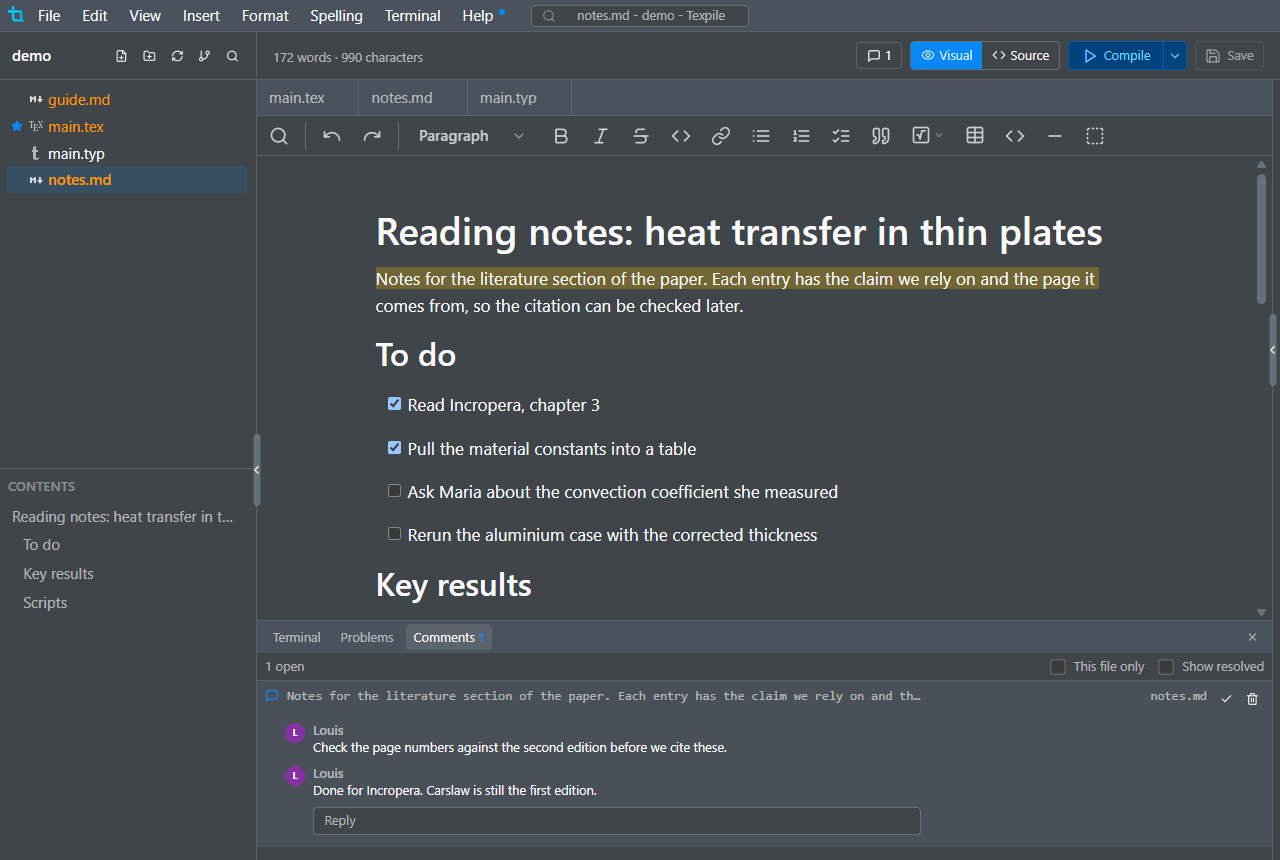
Your name on a comment is the display name from Preferences, and the name git is configured with when that is blank. Comments are stored in the project folder, so they travel with it, and nothing is written into the document itself. Deleting the text a comment is about deletes the comment with it, and undo brings both back. Texpile only tracks edits made in Texpile, so a file changed in another editor can leave a comment detached. A comment with nowhere to sit (its text is gone, its file was deleted, or it is in the preamble while the visual editor is open) keeps its thread in the Comments panel with a badge. A detached thread offers Attach to selection there: select the text it belongs to and it is placed again. A comment whose text was found but whose surrounding words changed gets a Check placement badge: if the same sentence appears more than once in the file, the comment may now sit on another copy. Guests in a shared session can read and write comments.
Suggest changes
The button left of the comment count picks how edits apply, and the choice is remembered per project. Editing, the default, changes the document directly. In Suggesting, edits go into the file as suggestions: the new words are tinted, the old words are struck through just before them, and a card beside them offers Accept and Reject. Accept keeps the new words. Reject puts the old words back. Formatting put on words that stay the same, bold for instance, shows only the tinted words, and the card says Format and names the formatting.
The file on disk holds the suggested text, so a compile shows the paper as it reads with every suggestion taken. The old words are kept with the comments in the project folder, and nowhere else, so commit that folder along with the files.
In the source editor, spaces and line breaks are suggested like any other text, so rejecting every suggestion gives the file back exactly as it was. The visual editor rewraps lines by itself, so there only a paragraph break added or removed becomes a suggestion, not the spacing inside a paragraph.
Suggestions stay in step with later edits. Typing inside a suggestion in Editing splits it around the new words, deleting some of its words shrinks it, and replacing the whole passage closes it. Typing inside someone else's suggestion while Suggesting makes a suggestion of your own there. Undoing a suggestion, or typing the old words back, removes it. The arrow keys and a click can put the cursor on either side of struck-through words, and typing goes in on that side.
The visual editor cannot draw every change as words. A change inside a formula, a table, or LaTeX commands shows its paragraph in yellow, with the text as it is on disk, and the card says that some changes cannot be shown there. A change in the preamble or a % comment is not drawn at all. Its thread is listed in the Comments panel with a note to switch to source mode, which shows every suggestion in place.
When the words a suggestion changed are edited in another program while Texpile is not watching the file, the suggestion is marked lost. It stays in the Comments panel with its old and new words, and can be dismissed. Suggesting is not available in a shared session.
An AI assistant connected over MCP can read the threads, reply and resolve, re-attach a thread to text it rewrote, and leave comments of its own. See AI assistants (MCP).