Tables
Insert a table from the toolbar and edit it like a table in a word processor.
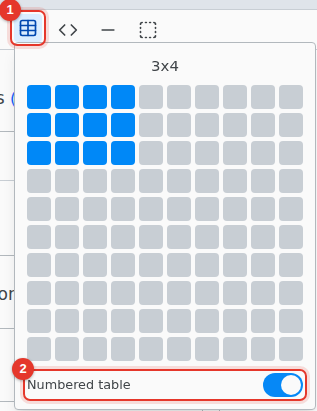
- Insert table. Move over the grid to pick a size, up to 10 by 10.
- Numbered table. A numbered table gets a caption and a label you can reference. Decide before inserting: it cannot be changed later.
Edit
Tab moves to the next cell. Right-click a cell to add or delete rows and columns. Select several cells and right-click › Merge Cells. Split Cell undoes it.
A range copied from a spreadsheet pastes as a table.
Table settings
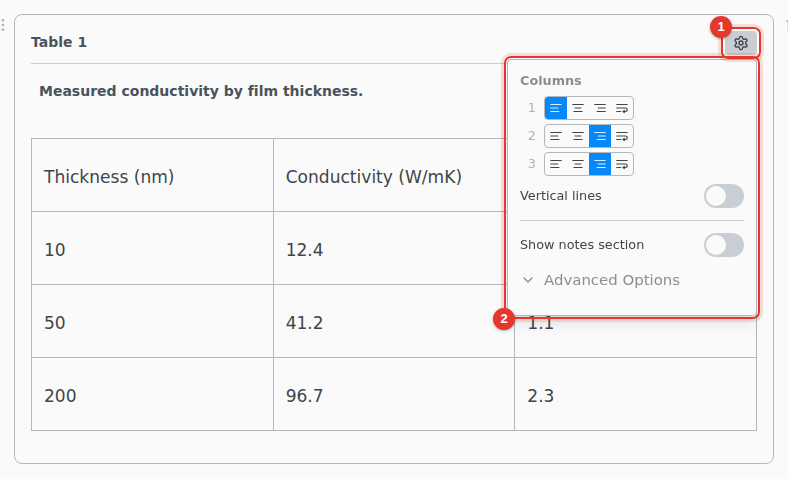
- Hover the table and click its settings icon.
- Set each column, the lines and the notes.
A column can be left, center or right aligned, a paragraph of fixed width, or stretch to fill the line. Advanced Options has the table's label and the lines between rows.
A numbered table needs a caption. A warning icon shows until it has one.