Equations
Type math as you would in Typst and see it typeset as you go.
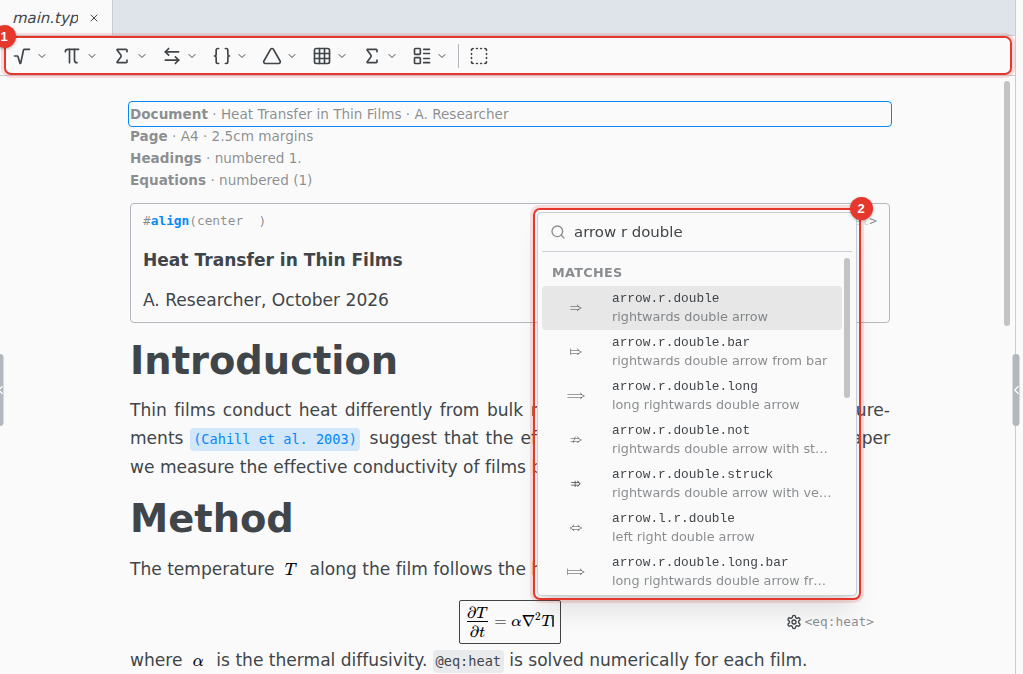
- Math toolbar. Shows while the cursor is in an equation: roots and fractions, Greek letters, operators, arrows, brackets, accents, matrices and more.
- Symbol search. Press Tab in an equation and type a name or what the symbol means, such as
arrow r doubleornot eq.
Insert an equation
Press Ctrl M for an inline equation, or Ctrl Shift M for a display equation.
Type a name such as alpha or arrow.r and a space, and it becomes the symbol. A name and (, such as frac(, builds a fraction with places to fill. Esc opens a box to type the Typst directly.
Number and label
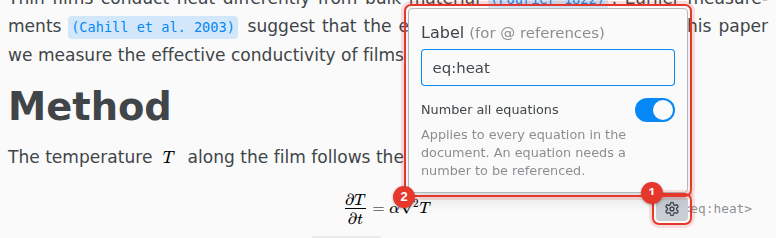
- Hover a display equation and click its settings icon.
- Give it a Label, and turn on Number all equations.
The switch applies to every equation in the document. A reference to an equation needs the numbering on. Type @ anywhere to reference it.
Keyboard shortcuts
On macOS, use Cmd for Ctrl.
| CtrlM | Inline equation |
| CtrlShiftM | Display equation |
| Tab | Symbol search, inside an equation |
| Esc | Type the Typst directly, inside an equation |
| ShiftEnter | A new equation below, inside a display one |