Live preview
Live preview
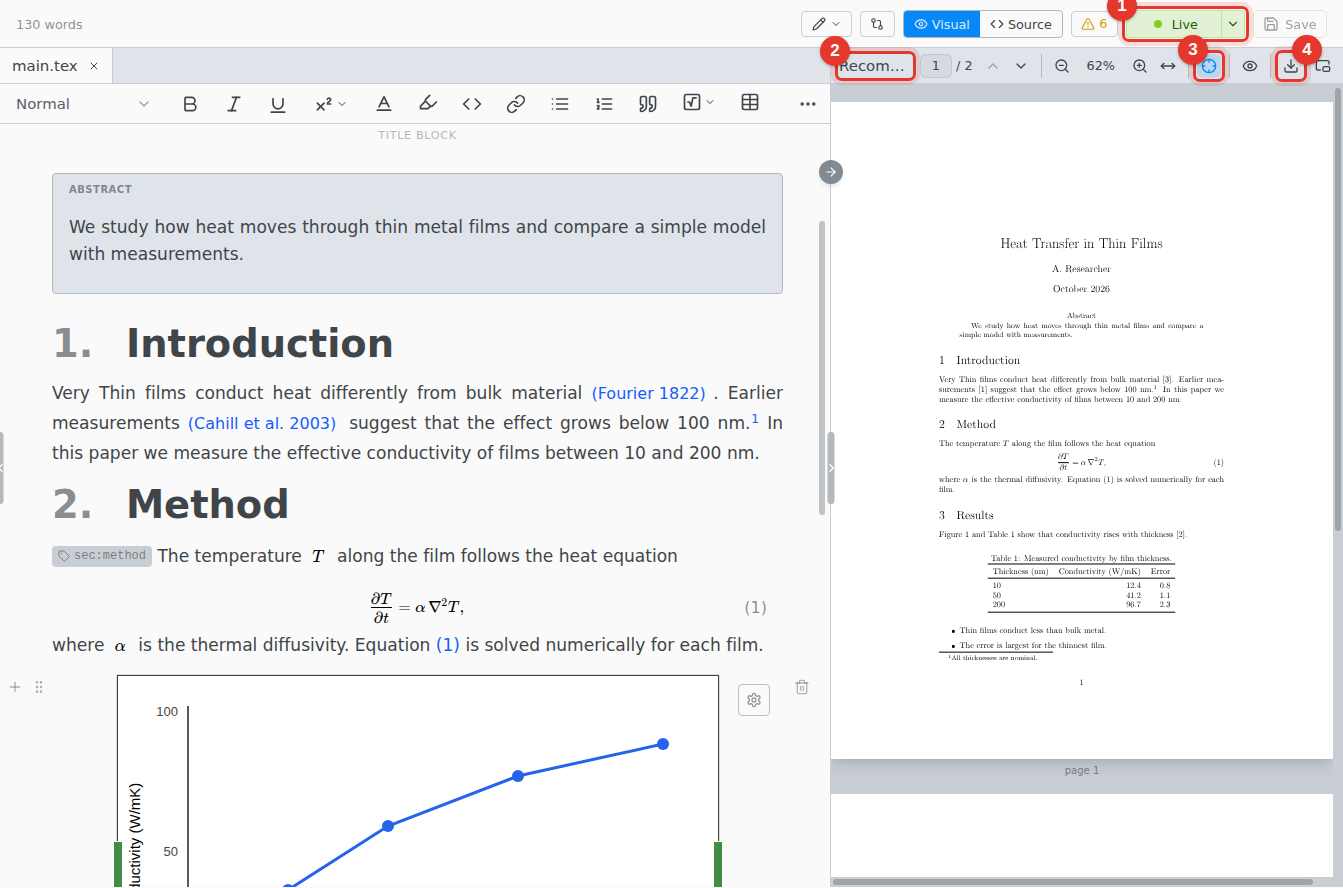
Live preview is Texpile's answer to recompiling by hand. Texpile injects its own scripts into your installed lualatex engine, so many changes, such as text edits, render instantly. Anything that cannot be rendered instantly is recompiled in full, automatically.
- Toolbar
- The Preview button Top right of the editor. It reads Live while the engine is running. Click it to pause.
- Setting
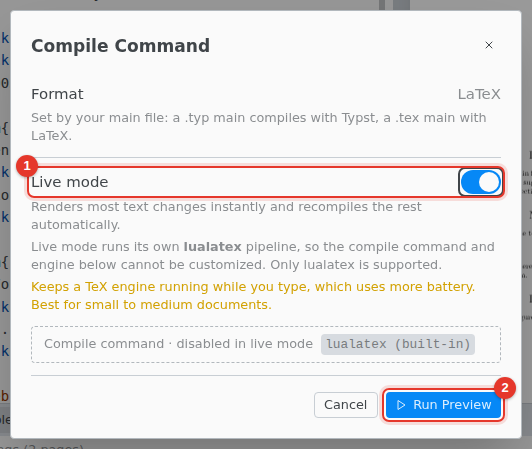
- Terminal › Configure compile command… › Live mode

Live preview needs a TeX distribution installed. A failed compile is reported in the Problems panel.
What renders instantly
An edit is shown at once only when the engine confirms that the result is what a full compile would produce. Editing a paragraph, a heading, a list item, an equation, or a table cell usually qualifies. An edit that moves a page break, touches a footnote, or changes a float is compiled in full instead, about a second after you stop typing. Nothing is drawn from a guess.
Limits
Live preview runs its own lualatex pipeline, which differs from Compile in a few ways.
- lualatex only. The preview uses lualatex whatever the compile command says. A document that only compiles with pdflatex or xelatex fails in the preview, and the Problems panel says why. Compile still runs your own command.
- No shell escape. Packages that run a program, such as minted or externalized TikZ, do not build in the preview.
- Save PDF in the preview toolbar writes the lualatex render. Compile is the export that follows your command.
- Not while hosting a shared session. Guests see the compiled PDF instead.
- Autosave stays on while the preview runs.
- Battery. The engine stays running while you type, which can use a lot of battery on a laptop. Turn live mode off when you are not using it.
- Document size. Live mode works best with small to medium documents. A long book still previews, but each full recompile takes longer.
- The preview keeps its files in a
_draftfolder inside the project. The folder is hidden from the file tree and ignores itself in git.