Compiling
Press Compile, or Ctrl Alt Enter, to build the PDF from the main file. Texpile saves your files first, and the PDF opens beside the editor.
Problems
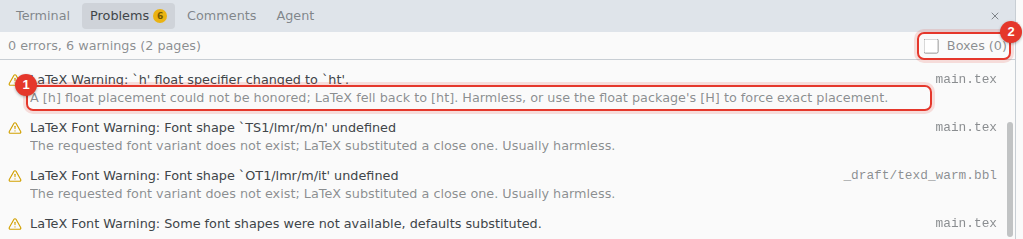
The Problems panel lists the errors and warnings from the log, with the file and line. Click a row to jump there. The count also shows next to Compile.
- Hints. Common messages get a plain-words hint, such as the
\usepackageline an unknown command needs. - Boxes adds overfull and underfull box warnings.
Jump between the source and the PDF
The arrow on the divider between the editor and the PDF shows the cursor's place in the PDF. In the source editor, right-click › Show in PDF does the same. Double-click the PDF to jump back.
Change the engine or the command
Open the menu next to Compile.
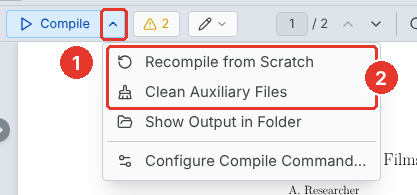
- The menu.
- Recompile from Scratch deletes the build files and compiles again. Use it when an error stays after you fixed it. Clean Auxiliary Files deletes the build files and keeps the PDF.
Configure Compile Command… opens the settings:
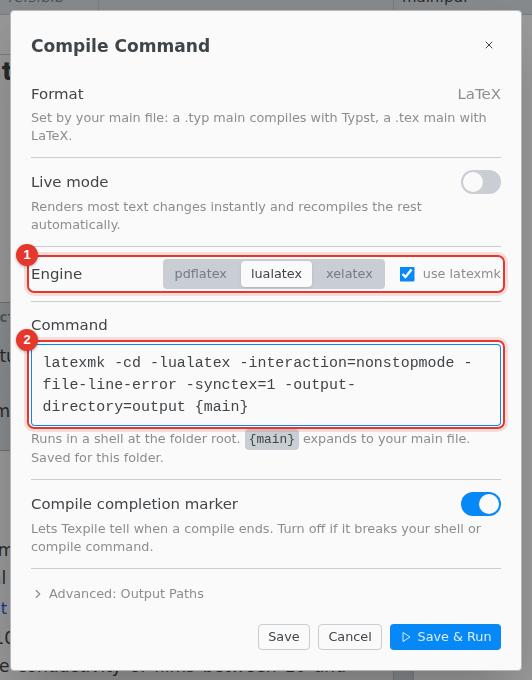
- Engine. pdflatex, lualatex or xelatex. With use latexmk on, the compile repeats until the references and citations settle.
- Command. Write your own.
{main}stands for the main file. Use Default puts the default back.
The settings are saved for the folder.
Shell escape
Packages such as minted need -shell-escape in the command. Texpile refuses it while you host a shared session.
A project with its own command
A project that sets its own compile command, such as one you cloned, shows "This project is set up to compile with:" above the editor. Compile waits until you click Use It or save your own command.
The default command
latexmk -cd -lualatex -interaction=nonstopmode -file-line-error -synctex=1 -output-directory=output {main}
| Part | What it does |
|---|---|
-cd |
Runs in the main file's folder, so its includes are found. |
-lualatex |
The engine. -pdf is pdflatex and -xelatex is xelatex. |
-synctex=1 |
Lets you jump between the source and the PDF. Keep it. |
-output-directory=output |
Puts the PDF, the log and the build files in output. |