Equations
Type math as you would in LaTeX and see it typeset as you go.
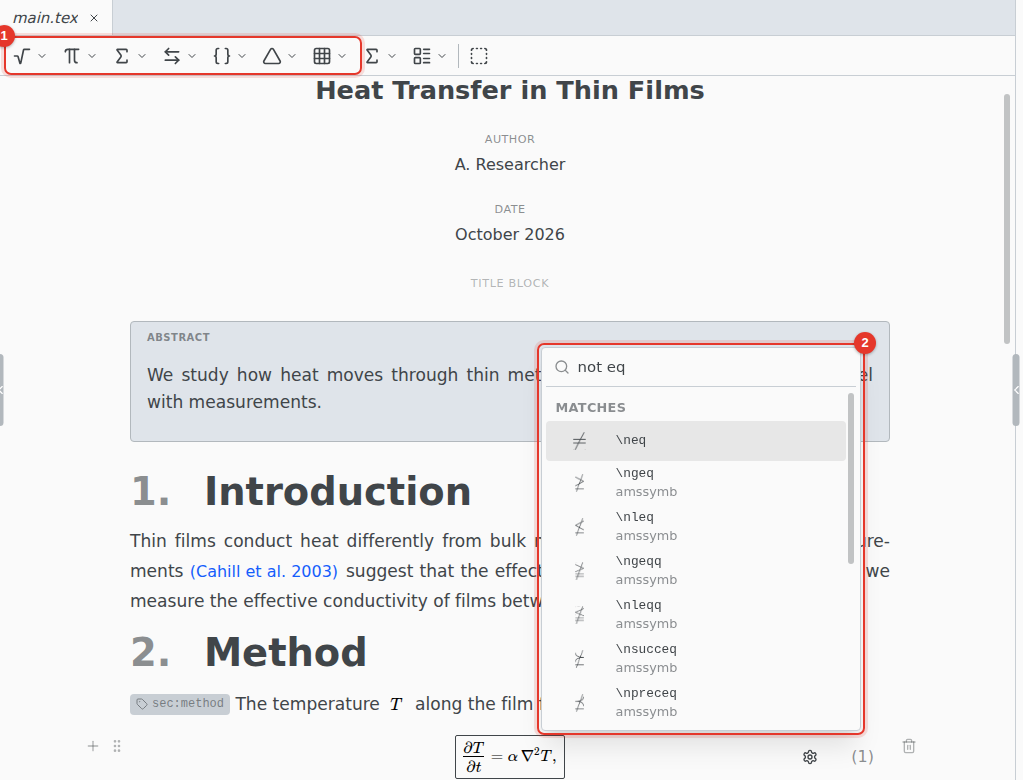
- Math toolbar. Shows while the cursor is in an equation: Greek letters, operators, arrows, brackets, matrices and environments.
- Symbol search. Press Tab in an equation and type a name or what the symbol means, such as
not eqorarrow right.
Insert an equation
Press Ctrl M for an inline equation, or Ctrl Shift M for a display equation.
Type a command and press Space: \frac becomes a fraction with places to fill. Your own \newcommand macros show as they print.
If a symbol needs a package your document does not load yet, click Add to Preamble.
Number and label
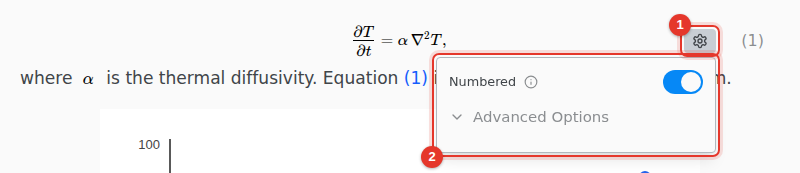
- Hover a display equation and click its settings icon.
- Turn on Numbered.
Type @ anywhere to reference the equation. Its label is under Advanced Options: rename it and every reference follows. In an equation of several lines, each line has its own label.
Change the formula type
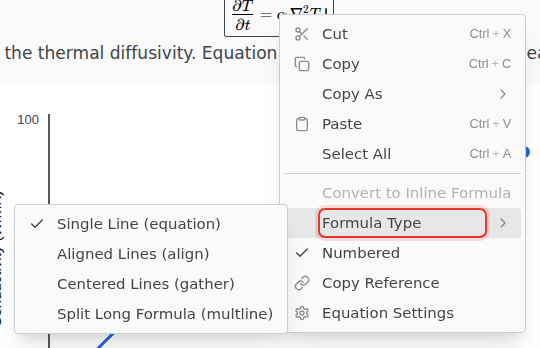
Right-click an equation for Formula Type: Single Line (equation), Aligned Lines (align), Centered Lines (gather) or Split Long Formula (multline).
The same menu converts between inline and display, and Copy As copies the equation as LaTeX, Typst or MathML.
Keyboard shortcuts
On macOS, use Cmd for Ctrl.
| CtrlM | Inline equation |
| CtrlShiftM | Display equation |
| Tab | Symbol search, inside an equation |
| ShiftEnter | A new equation below, inside a display one |