Equations
Equations
Equations are edited as math on the page, in every format. Two shortcuts cover most of it, and everything else is a click away.
- Shortcut
- Ctrl+M Inline equation, flowing with the text.
- Shortcut
- Ctrl+Shift+M Display equation, on its own line.
- Menu
- Insert › Math Inline equation, Display equation, and in a LaTeX file every environment below.
The math toolbar
Click into any equation and a toolbar appears above it: symbols grouped by kind (Greek, calculus, relations, sets, matrices), inserted at the cursor. A Select equation block button selects the whole equation as one unit.

Numbering and references
Hover an equation for a Settings icon beside it, and switch on Numbered. Type @ anywhere in the document to reference it by number. Renumbering after you add or remove equations is automatic.


Environments
In a LaTeX file, the math environments are inserted from Insert › Math.
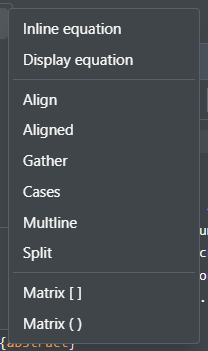
Labels and numbered equations
Switch on Numbered in an equation's settings to add a label. Which kind of label you get depends on the environment.
Single equations
A plain equation gets one label. Find it under the settings' Advanced options as \label, the same one a \ref points to, and edit it there.
Align, Gather, Alignat, and Eqnarray
These get a label per line instead. Open the settings and fill in the Line Labels field for each line, or click Auto to generate one. Lines are split on \\ in your LaTeX.
Multline
Multline keeps a single label rather than one per line, since it still renders as one block.

In Typst
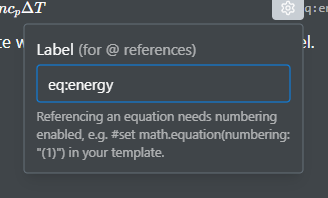
The same math editor and toolbar apply. There is no Numbered switch, since Typst numbers equations from a rule in the document rather than one at a time. The settings panel has a Label field instead, and @ inserts a reference to it, the same as in LaTeX. There are no environments. An equation the editor cannot translate into its math editor stays in place as a Typst code chip, and is still editable there.
In Markdown
Math between single dollar signs is inline and between double dollar signs is a block, edited with the same toolbar. There is no numbering and no label.