Visual editor
Edit the document as formatted text. Texpile writes the Typst, and untouched parts stay exactly as they were.
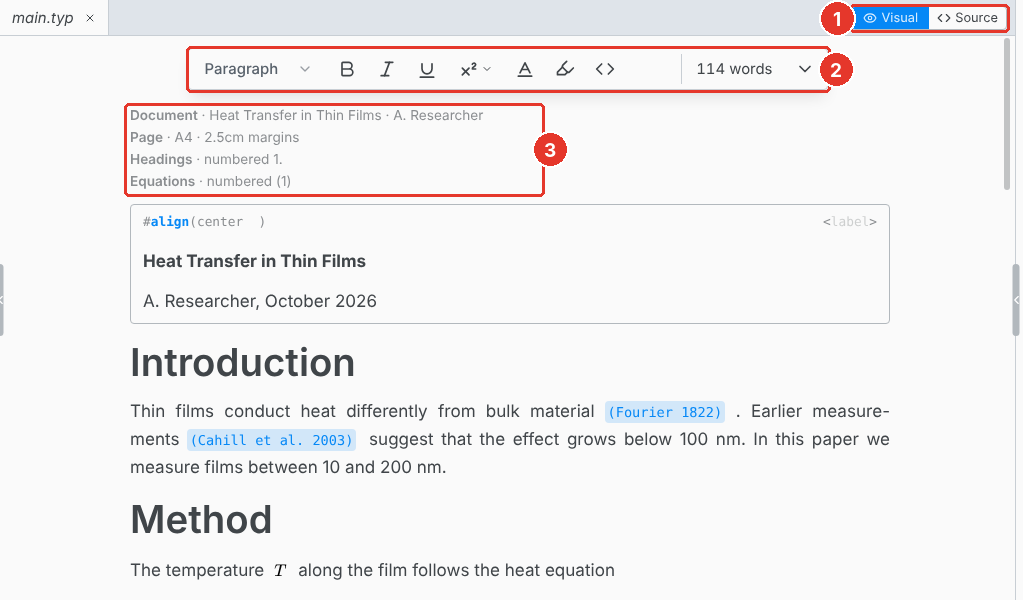
- Visual / Source. Switch at any time. Undo works across the switch.
- Toolbar. Headings and text style. The arrow at its end shows lists, math, tables and code. The Insert and Format menus have the rest.
- Set rules. Each shows as one line. Click it to change it.
A reference shows its label in place of its number. Click a reference, a label or a code chip to edit it.
Files over 800 KB open in the source editor.
Set rules
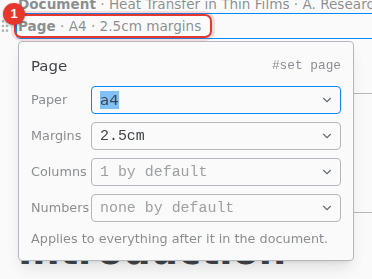
The panel has the common settings for the page, text, paragraphs, headings, the document and equations. Anything else the rule sets is kept as written.
Add your own function
Insert › Typst Source has the parts missing from the toolbar.
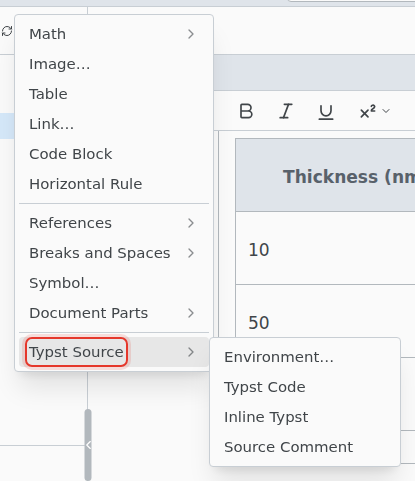
- Environment… wraps content in a function, such as
theoremorblock. Functions you define with#letare offered first. - Typst Code and Inline Typst add raw Typst as a block or inside a line.
Typst outside these forms stays as a Typst code chip. Click it to edit it.
Paste
Paste from Word, a spreadsheet, a web page or a screenshot, and Texpile keeps what it can. Math copied from a LaTeX file pastes as Typst math. See Paste and drop.
Keyboard shortcuts
On macOS, use Cmd for Ctrl. Typing = and a space at the start of a line also starts a heading.
| CtrlAlt1 | Heading 1 |
| CtrlAlt2 | Heading 2 |
| CtrlAlt3 | Heading 3 |
| CtrlAlt0 | Normal text |
| CtrlM | Inline equation |
| CtrlShiftM | Display equation |
| Ctrl. | Superscript |
| CtrlShift, | Subscript |
| CtrlShiftB | Quote |
| CtrlShift` | Code block |