A tour of the window
A LaTeX project, with the PDF and the bottom panel open.
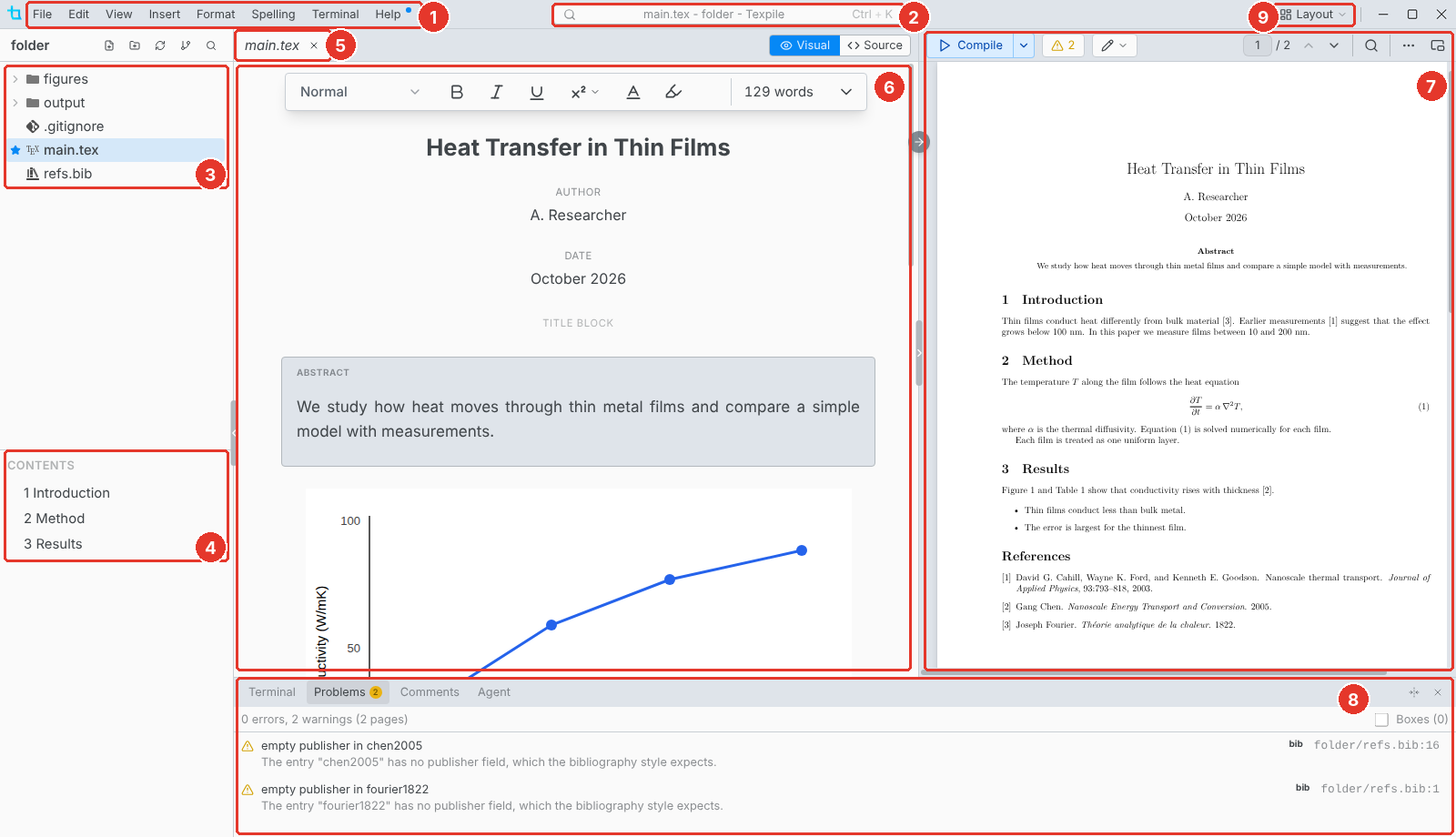
- Menus. On macOS they are in the system menu bar, with a Texpile menu added.
- Window title. Click it, or press Ctrl K, for the command palette.
- Files. The project folder. The star marks the main file.
- Contents. The headings of the paper the open file belongs to. Click one to go there.
- Tabs. Ctrl Shift T reopens the last closed tab.
- Editor. The visual editor, or the source editor.
- PDF. The bar on the editor's right edge shows and hides it.
- Bottom panel. Terminal › Show Terminal opens it.
- Layout. Shows and hides the sidebar, the bottom panel and the PDF, and splits the editor or the PDF. See Layout.
Editor and PDF bars

- Visual / Source. Switch editors. Each editor has its own switch.
- Word count. Select text to count the selection. Hover for the whole paper.
- Compile. The menu beside it has the compile settings.
- Problems. Errors and warnings from the last compile.
- Editing / Suggesting. In Suggesting, your edits become suggestions others can accept.
With the PDF closed, Problems and Editing / Suggesting move to the title bar, and Show PDF opens the PDF. Ctrl Alt Enter compiles either way.
Edits save on their own a moment after you stop typing. Ctrl S (Cmd S on macOS) saves right away.
Layout
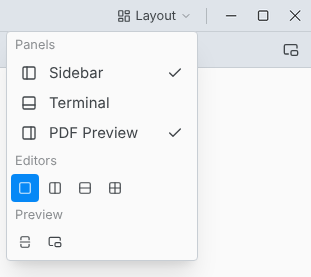
- Panels shows and hides the sidebar, the terminal and the PDF.
- Editors shows one editor, two side by side, two stacked, or four in a grid. See Split view.
- Preview splits the PDF into two views, one above the other, or opens it in a window of its own.
Sidebar
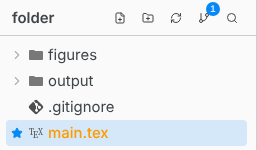
The number on the Source Control button is how many files changed. Esc returns from Source Control or Find in Files to the files.
Bottom panel
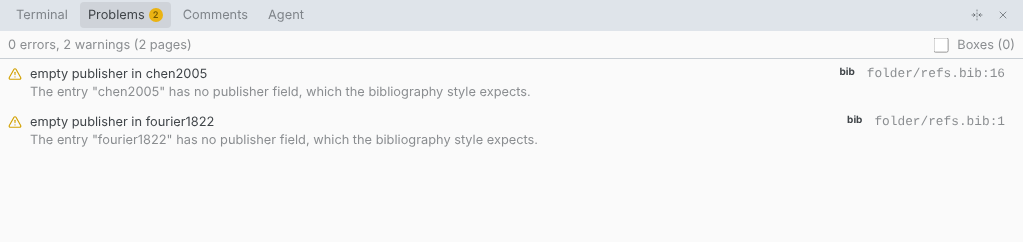
The Agent tab is a chat with an AI agent on your computer. It shows while at least one agent is turned on in Preferences › AI Assistant and Disable all AI integrations is off.
Menus
| Menu | What is in it |
|---|---|
| File | New, Open Folder, Clone Repository…, New Window, Open Folder in New Window…, Save, Save as Template…, Version History…, Restore Deleted File…, Close Workspace, Shared Session, Preferences… |
| Edit | Command Palette, Go to File, Undo, Redo, Find… |
| View | Zoom In, Zoom Out, Reset Zoom |
| Insert | Math, Image…, Table, Link…, References, Symbol…, and the rest for your file type |
| Format | Bold, Italic, Underline, Text Style, Headings, Block Quote, Format Document |
| Spelling | Check Spelling & Grammar, Edit Dictionary…, Spelling and Grammar Settings… |
| Terminal | Compile, Configure Compile Command…, New Terminal, Show Terminal |
| Help | Keyboard Shortcuts, Open Tutorial, What's New, Documentation, Join Discord, Report a Problem…, Check for Updates |