Projects and files
A project is a folder, and opening the folder is all the setup it needs. A folder opens in one window at a time.
The main file
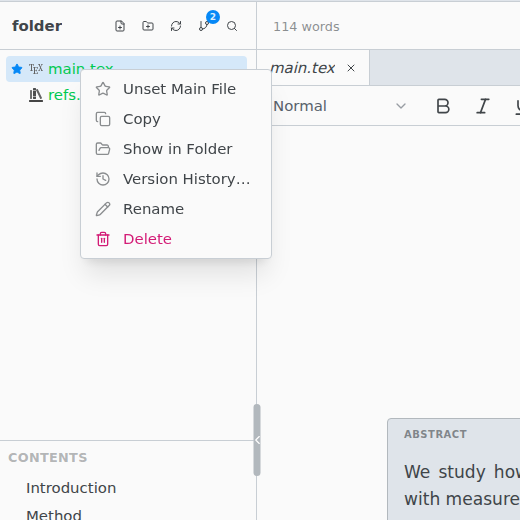
The main file is the one Texpile compiles and the preview follows. Right-click a .tex or .typ file in the file tree › Set as Main File. With several documents and none set, the first compile asks you to choose one.
Texpile saves the choice, the build settings and the comments in a hidden .texpile folder inside the project, so they travel with the folder, Git included. The folder's snippets live there too.
Multi-file projects
Files pulled in with \input (LaTeX) or #include (Typst) compile as part of the main file.
- New Include (right-click in the file tree) creates a file and inserts its
\inputor#includeline at the cursor. - After a rename or move, Texpile offers to update the references to the old name:
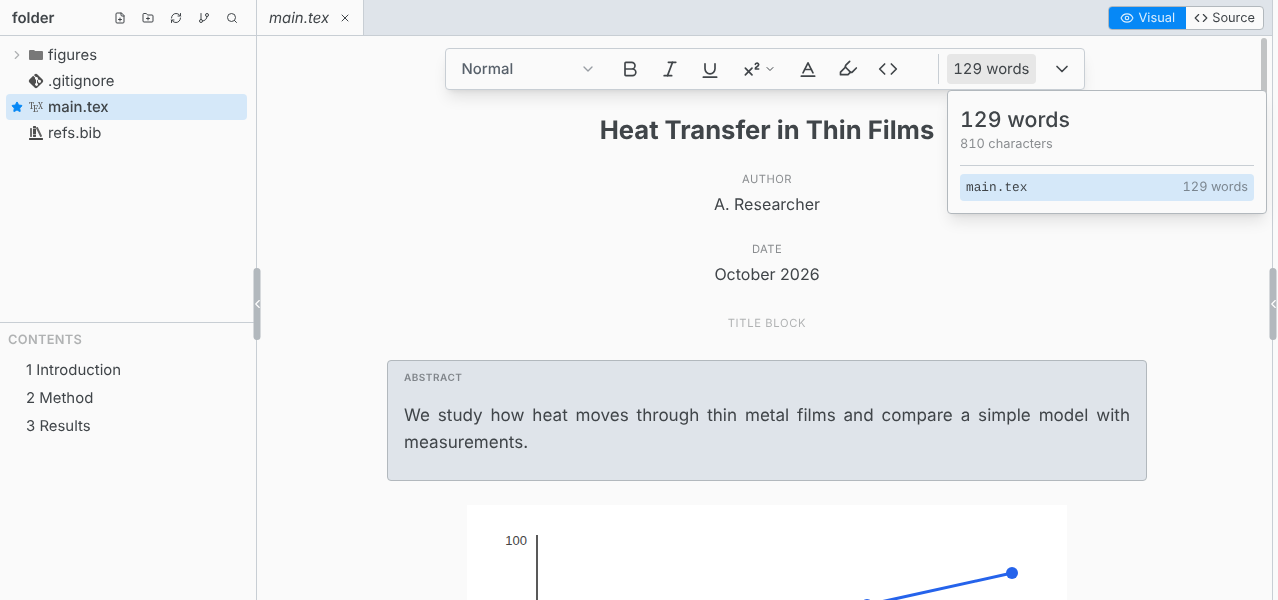
\input,\includegraphics, Typst includes and images, and Markdown image links. - The word count at the end of the format bar counts the open file. Hover it for the whole document, file by file. The count leaves out math, citations, references, comments, code and the LaTeX preamble.
- Contents under the file tree lists the headings, figures, tables and beamer frames of the whole paper, from any file in it.
Open a single file
Double-click a .tex, .sty, .cls, .tikz, .typ or .bib file to edit it on its own. The file tree, Find in Files, Compile, Source Control, Comments, Shared Session, the Agent tab and Save as Template need its folder: Open in Workspace in the top bar opens the folder with all of them.
Files
- The file tree hides folders whose names start with a dot, and
_draftfolders. - Delete moves items to the Recycle Bin or Trash. Click a row in the file tree, then
Ctrl Zundoes a file change: a new file, paste, rename, move, delete or Replace in Files. - File › Restore Deleted File… brings back a deleted file from Version History.
- Dragging files between two Texpile windows copies them.
Tabs
| CtrlT | Go to File |
| CtrlShiftT | Reopen the last closed tab |
| CtrlTab | Next tab |
| CtrlShiftTab | Previous tab |
On macOS use Cmd, except for Ctrl Tab. A tab in italics is temporary: the next file you click replaces it. Edit the file or double-click the tab to keep it open. To see two files at once, see Split view.
Find in files
Ctrl Shift F searches every file in the folder. The arrow at the left of the search box shows Replace.
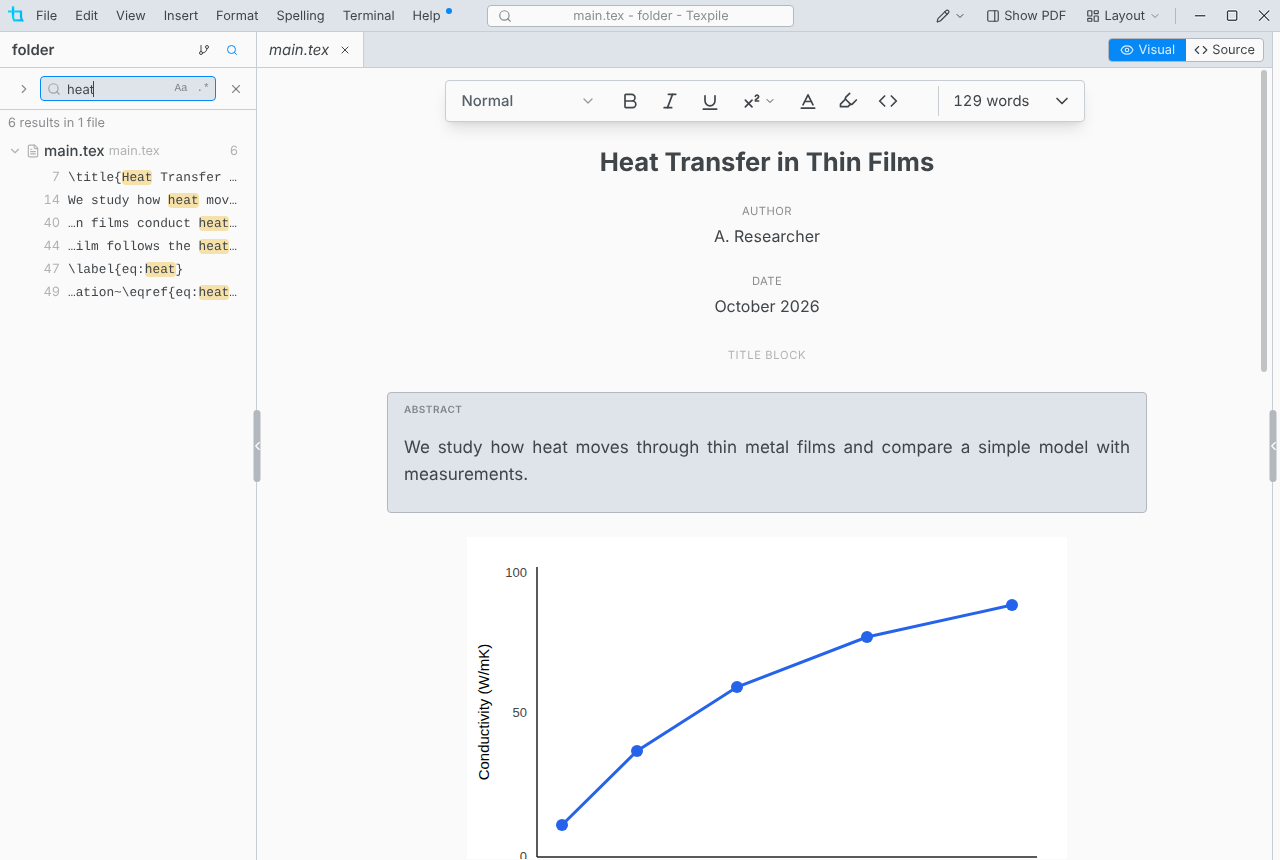
The search skips files over 2 MB, folders whose names start with a dot, and _draft, build, dist, out and output folders. Undo a replace with Undo in the "Replaced…" message, or Ctrl Z in the file tree.