
Math Typesetting
Texpile provides powerful support for mathematical typesetting. Equations fall into two main categories: Inline and Block.
Inline Math
Inline equations flow naturally within your text paragraphs.

To create an inline equation:
- Press
Ctrl + M(orCmd + Mon Mac). - Type your LaTeX math expression (e.g.,
x^2).
Block Equations
Block equations are standalone expressions that occupy their own line. Unlike inline equations, block equations can be numbered.
To create a block equation:
- Press
Ctrl + Shift + M(orCmd + Shift + Mon Mac).
Numbering and Referencing
When a block equation is numbered, you can reference it anywhere in your document. If you reorder your equations, Texpile will automatically update the numbering.
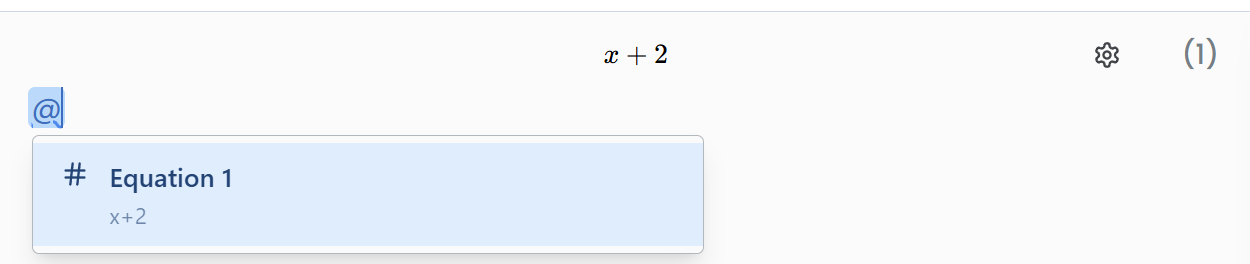
- Toggle Numbering: Hover over the block equation, click the Settings icon that appears on the right, and toggle Numbered.
- Reference: Type
@followed by the value to select the equation from the list.
Editing Math
There are many ways to edit a math field. One of the easiest ways is to use the toolbar.

Using the toolbar, you can find many common symbols and operations. You can also use the AI Assistant button on the right to describe your equation in plain English.
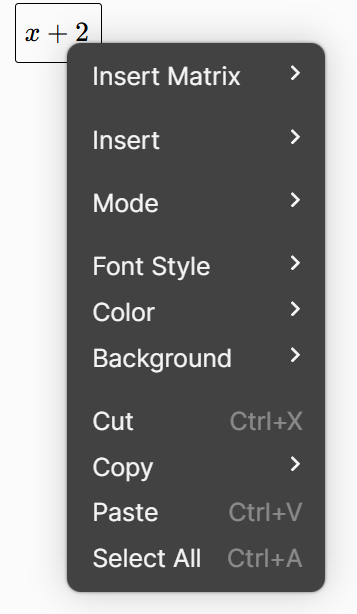
Access more options by right-clicking the math field to open the context menu.
Tip: You can also search for symbols using LaTeX commands by typing a backslash
\followed by the command name.
Environments
Texpile supports advanced environments for complex equations:
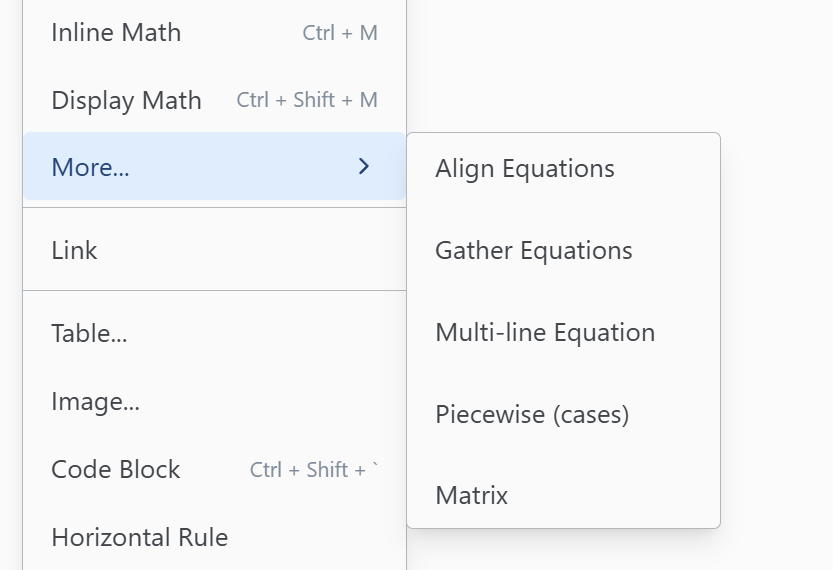
- Align: Align multiple equations at a specific character (usually the equal sign).
- Gather: Group multiple equations in one block, where each equation is numbered independently.
- Multiline: For single equations that are too long to fit on one line.
To create these environments, go to Insert > Math > More…
Note: You can create a multi-line equation by pressing
Ctrl + Enter(orCmd + Enter) while inside a math field.
Custom LaTeX
We support over 700 LaTeX symbols. However, if you ever need a specific package or command that isn’t supported visually, you can insert a Raw LaTeX field from the insert menu to write standard LaTeX code directly.
Advanced: Custom Labels
For advanced LaTeX users, you can define a custom \label for your equation:
- Open the equation settings.
- Click Advanced.
- Enter your custom label (e.g.,
eq:newton).