Compiling
Compiling
Texpile does not ship a TeX distribution and does not compile in the cloud. It runs the compile command you choose, on your machine, and shows you what came back.
- Menu
- Terminal › Compile
- Menu
- Terminal › Configure compile command… Set the command, the engine, and live mode.
- Menu
- Terminal › New terminal Opens another shell alongside the running one.
- Shortcut
- Ctrl+Alt+Enter Start or stop a compile.
- Panel
- Problems In the dock at the bottom of the window.
You need a TeX distribution installed: TeX Live, MiKTeX, or MacTeX. Editing works without one; compiling does not.
Setting the command
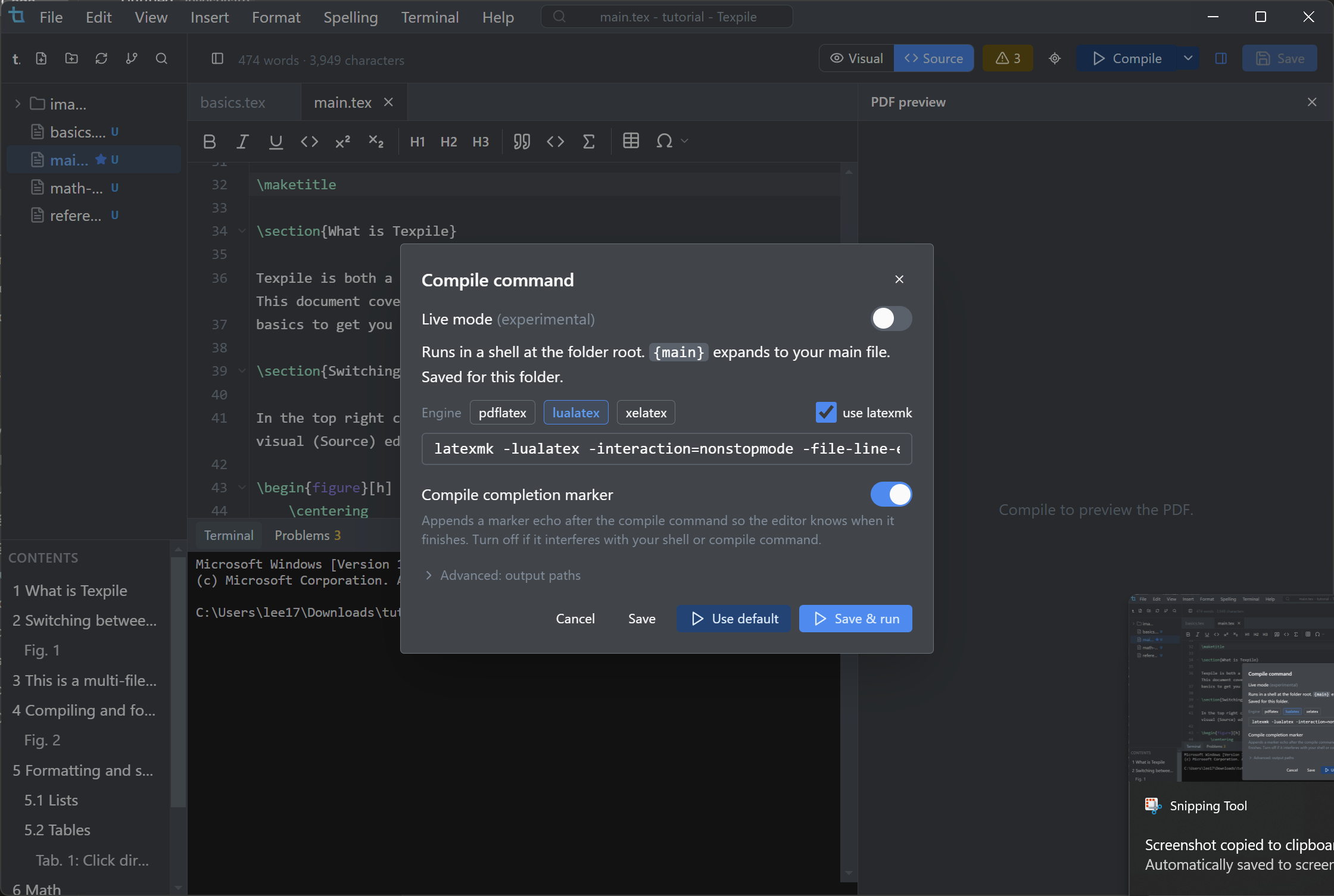
Terminal › Configure compile command… sets what runs. Any shell command works, {main} expands to your main file, and the command is remembered per folder.
latexmk -pdf {main}Using the default
Texpile fills in a sensible default the first time. If you have changed it and want it back, the same dialog has a Use default button.
Live mode
The Live mode switch, in the same dialog, is what makes the page update as you type.
Advanced: output paths
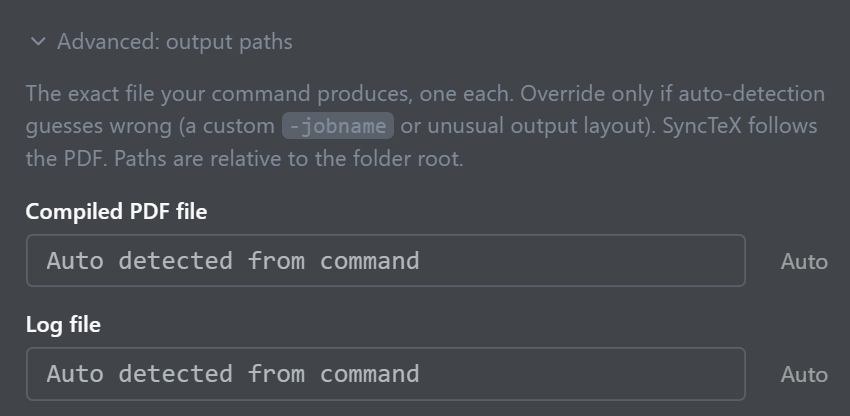
Texpile detects the compiled PDF and log file from your command automatically, and in very rare cases you need to override that: a custom -jobname, or an unusual output layout. Both paths are relative to the folder root, and SyncTeX follows whichever PDF you point it at.
Built-in terminal
Terminal › New terminal opens another shell alongside whatever is already running. Compiles always run in a terminal named Compile, which Texpile creates the first time you compile if one does not already exist.
Problems panel
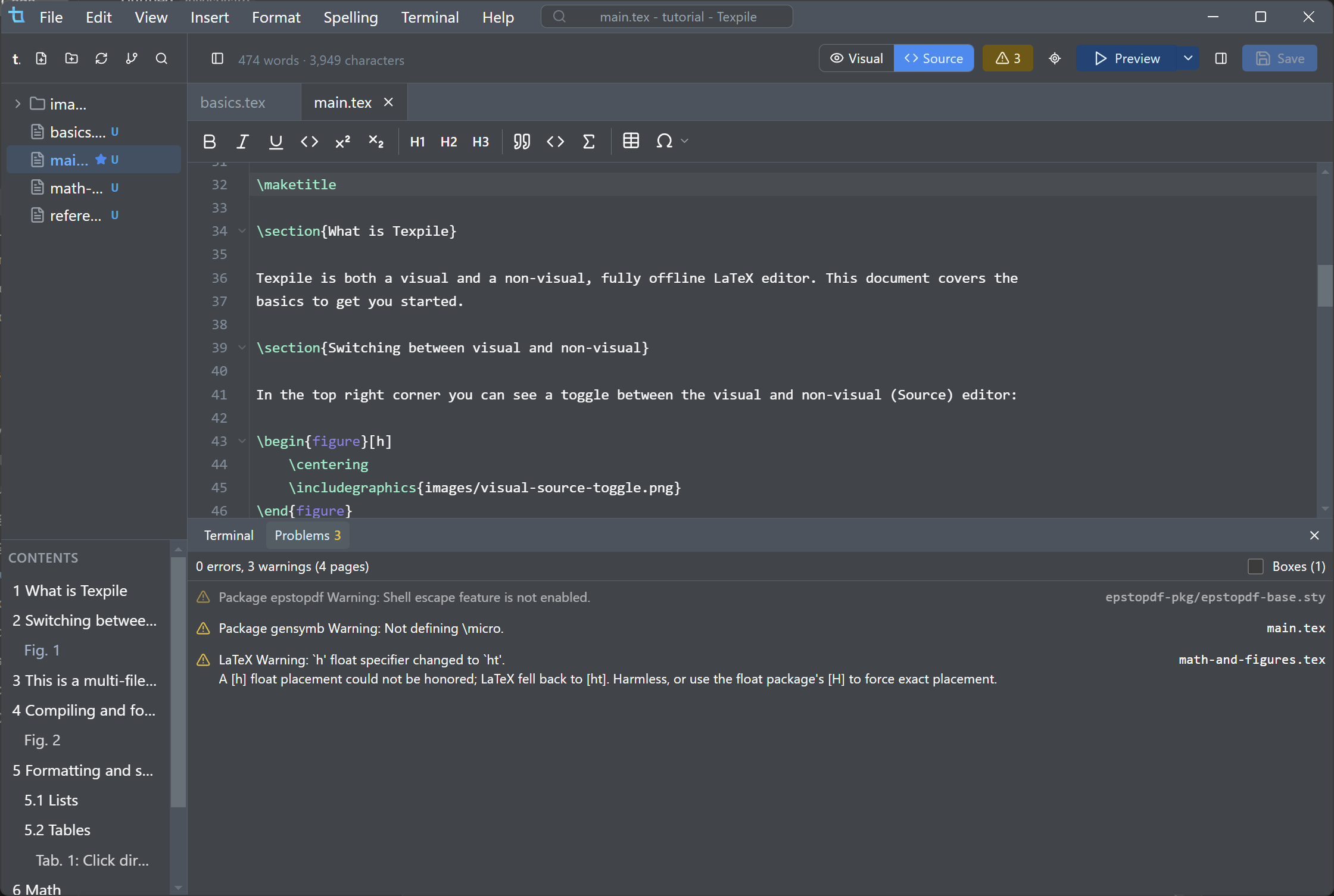
Texpile reads the compile log and the bibliography log and lists errors and warnings with plain-language explanations. Click a problem to jump to its line; a bibliography warning jumps to the entry in the .bib file. Even a large log does not stall the app. Toggle the panel from the Problems tab in the terminal dock, or the warning or error badge beside the Visual / Source toggle in the top right corner.
SyncTeX
SyncTeX only works in the source editor. To jump from source to PDF, right-click a line and choose Show in PDF, or click the crosshair icon that appears beside the Compile button while you are in Source mode. To jump from PDF back to source, double-click the text in the PDF.

PDF preview
The compiled PDF sits next to the editor. Preferences has a dark-page option for reading at night without inverting the whole document.