Suggesting changes
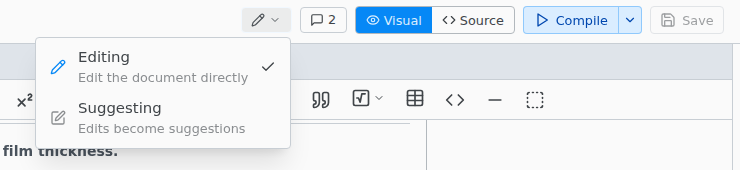
Suggesting mode works as in Google Docs: your edits become suggestions that someone accepts or rejects. Switch with the pencil button at the top of the PDF, or in the title bar while the PDF is closed. Texpile remembers the mode per project.
Suggestions in source files
Your file already holds the suggested text, so the PDF shows every suggestion as if accepted. The old words are kept in the hidden .texpile folder until someone accepts or rejects them. Commit .texpile with the file.
In the source editor, spaces and line breaks are suggested like any other text. The visual editor suggests only paragraph breaks.
Accept or reject
Accept or reject suggestions one at a time, each on its own card.
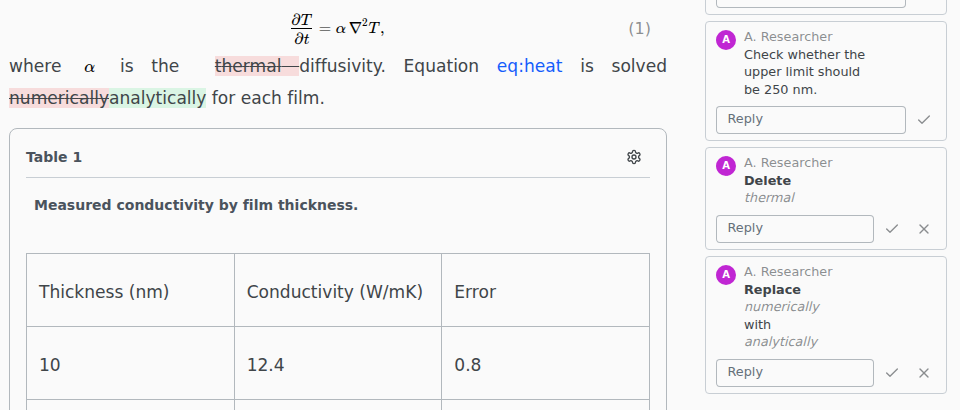
- Suggestions cover whole words. Fixing a typo replaces the word.
- In Editing mode, typing inside a suggestion splits it around your words, and replacing all of it closes it as Closed by an edit.
- Refine and AI assistants connected over MCP leave suggestions under their own name.
- Suggesting needs the whole folder open. It is off for a single file opened on its own.
Changes the visual editor cannot show
A change in a formula, a table or LaTeX commands shows as a yellow paragraph with Some changes cannot be shown here. A change in the preamble or a % comment shows only in the Comments tab, as Not in this view. Switch to Source to review either.