Preferences
Preferences holds the settings for the whole app. Open it with Ctrl , (Cmd , on macOS) or File › Preferences… (Texpile › Preferences… on macOS).
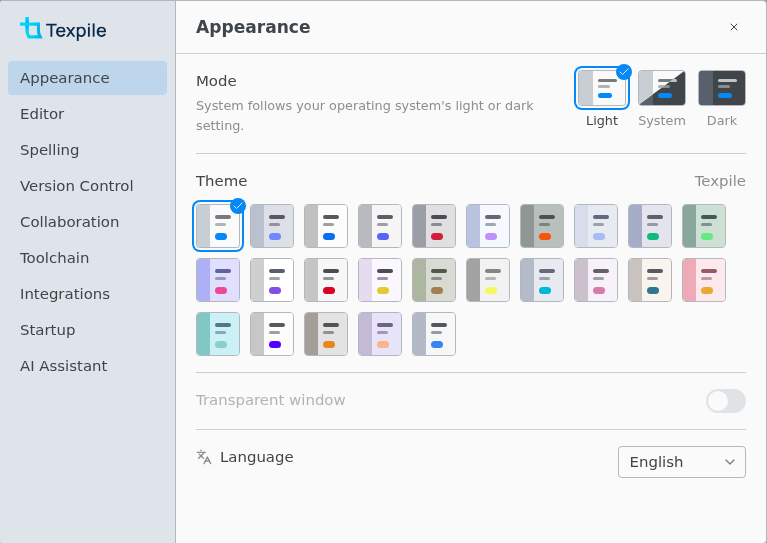
| Setting | Note |
|---|---|
| Appearance › Language | Changes the interface only. Spell check follows each document's own language. |
| Editor › Keybindings | Vim and Emacs work in the source editor only. |
| Editor › Justify text, Hyphenate words | Apply to the visual editor only. The file and the compiled document stay as they are. |
| Editor › Auto-fraction, Tab out of brackets, Matrix keys | Source editor math only. See Math typing helpers. |
| Spelling › Check spelling and grammar | Off by default. |
| Spelling › This folder › Language | The same choice as Spelling › Folder Language. Needs an open folder. |
| Spelling › Default language | For documents that name no language, in folders set to Automatic. English by default. |
| Spelling › Custom Dictionary | One list per language. Separate several words with spaces, commas, or semicolons. |
| Spelling › Grammar rules | All off by default. Shown while English is the default language or the open folder is checked in English. |
| Version Control › Autofetch | Fetches from the default remote every 3 minutes. |
| Version Control › Git Identity | Read-only. Change it with git config in a terminal. |
| Version Control › Keep version history | Keeps a copy of each save for 30 days. |
| Collaboration › Display name | Shown in shared sessions and on your comments. Left empty, you show as Host or Guest. |
| Toolchain › Folders | Texpile looks here first for every program it runs, including your compile command. See Toolchain. |
| Toolchain › Distribution | Which TeX distribution, and which tinymist, to use when more than one is found. |
| Integrations › Find and cite papers online | Looks papers up through Crossref, DataCite, doi.org, Open Library, and PubMed. |
| AI Assistant › Disable all AI integrations in Texpile | Turns off Refine, the Agent tab and the MCP server. Your choices below it stay as they were. |
| AI Assistant › MCP server | Lets an AI assistant such as Claude Code see your open files. See MCP server. |
| AI Assistant › Refine with | Only agents Texpile finds can be picked. To add another, add its folder under Toolchain › Folders. |
| AI Assistant › Agent tab | Untick every agent to remove the tab. |
Not in Preferences
- The compile command, output paths, and live mode are saved per folder: Terminal › Configure Compile Command….
- Interface zoom: View › Zoom In, Zoom Out, Reset Zoom.
- Which panels show, and how the editor and the PDF are split: Layout in the title bar.
- Dark PDF pages: Invert colors in the PDF bar's "…" menu, remembered separately for light and dark mode.